Thursday, June 22, 2017

10+ advanced formatting tips for Word users

Formatting improves the readability of your documents and often provides visual clues to the document's purpose. It's an important part of most every document and users often spend a great deal of time applying formats. These tips will help you work more efficiently and judicially when applying formats.

1: Copy defaults

When copying content from another source, even another Word document, Word retains the source formatting by default. You can eliminate subsequent formatting by applying the destination document's default style during the copy process as follows:
  1. Copy the content from the source to the Clipboard using [Ctrl]+C (or some other route).
  2. In the destination document, position the cursor and then click the Home tab (in Ribbon versions).
  3. In the Clipboard group, choose the Keep Text Only option shown in Figure A from the Paste drop-down. In Word 2003, choose the Keep Text Only option from the Paste Options (smart tag) drop-down after pasting the content.

Figure A

The Keep Text Only option applies the destination document's default style to copied content.
Changing the default, as follows might be more efficient:
  1. Click the File tab and choose Options (under Help). In Word 2007, click the Office button and then click Word Options. Choose Advanced in the left pane.
  2. In the Cut, Copy, and Paste section, choose the appropriate option. For example, you might want to retain source formatting when copying from other Word documents, but not Web sites.
  3. Click OK.
In Word 2003, choose Options from the Tools menu and click the Edit tab. You can uncheck the Smart Cut And Paste option or click the Settings button to customize the feature.

2: Insert section breaks

Dividing a document into sections lets you customize formats for a section's content and purpose. For instance, you might want a single page to be in landscape in the middle of a portrait document. Or you might want the header text or page numbering scheme to change for several pages. Using sections, you can apply different formatting as needed.
To insert a section break, click the Page Layout tab and choose a Breaks option in the Page Setup group:
  • Next Page: Starts the new section on the next page.
  • Continuous: Starts the new section on the same page.
  • Even Page: Starts the new section on the next even-numbered page.
  • Odd Page: Starts the new section on the next odd-numbered page.
In Word 2003, choose Break from the Insert menu.
Choosing Next Page creates a problem because Word also inserts a page break. If you don't want a page break, choose Continuous.
For quicker formatting, copy section breaks when formats are identical or similar. Then, tweak as necessary rather than starting from scratch each time. Figure B shows a selected section marker after enabling Show/Hide in the Paragraph group (on the Home tab; in Word 2003, it's on the Standard toolbar). To delete a section, select its code and press [Delete].

Figure B

Display formatting codes to select a section break.

3: Keep it together

To keep two or more words together on the same line, insert a nonbreaking space character between them by pressing [Ctrl]+[Shift]+[Spacebar] instead of inserting a regular space character. The space will look the same, but Word will keep the two words on the same line.
A nonbreaking hyphen works the same as a nonbreaking space but with hyphenated words. If you don't want Word to wrap at a hyphen character, enter a nonbreaking hyphen by pressing [Ctrl]+[Shift]+[-]. When the hyphenated word reaches the right margin, Word will wrap the entire word to the next line if necessary rather than breaking at the hyphen.

4: Format a list

Formatting just the number component in a numbered list is a bit tricky. You usually end up formatting the entire item or list, unless you know this simple trick:
  1. On the Home tab, click Show/Hide in the Paragraph group. In Word 2003, click Show/Hide on the Formatting toolbar.
  2. Select only the Paragraph mark at the end of the line.
  3. With the paragraph mark selected, apply formats. As you can see in Figure C, only the 2 changed color because we selected only the paragraph mark for that item.

Figure C

Selecting the paragraph mark is the key to formatting only the item's number.
To format more than one number, but not all of them, hold down the [Ctrl] key while selecting markers. To format all of the numbers in the list, without changing the format of the actual text, click any number in the list to highlight all of the numbers. Word will extend the format to new items. Formats applied to the entire list will take precedence over formats applied via the paragraph marker.

5: Remove formats

Removing formats isn't hard, but there's more than one way to get the job done. When you want to remove a single format, you probably select the text and click the appropriate option; most of them work as toggles. You might display the Format dialog and uncheck options when you need to delete more than one format.
If you want to strip all of the formatting, there's a quicker method: Select the text and press [Ctrl]+[Spacebar]. This shortcut removes all the character formatting except what's defined by the underlying style. To remove just the paragraph formats, press [Ctrl]+Q.

6: Keep styles from updating

Word lets you update a style when you add formatting to text. This behavior can be troublesome if users don't understand it, so you might want to disable it as follows:
  1. Click the Home tab.
  2. Launch the Styles dialog. In Word 2003, click the Styles And Formatting tool on the Formatting toolbar.
  3. Find the style.
  4. Choose Modify from the style's drop-down or right-click the style.
  5. Uncheck the Automatically Update option shown in Figure D. (This option isn't available with Word's default style, Normal.)

Figure D

Disable a style's automatic updating behavior to protect styles.
By default, Word doesn't set this option for built-in styles, but users often accidentally enable the feature. Don't enable this behavior when basing a new style on an existing style or creating a new one unless you have a specific reason to do so.

7: Adjust the default line spacing

Word 2007 and 2010 use a 1.15 line spacing setting. That's great if you publish a lot of content to the Web. If not, you can change the default to 1 as follows:
  1. Click the Home tab.
  2. Right-click Normal in the Styles Quick gallery and choose Modify.
  3. Choose Paragraph from the Format list.
  4. In the Spacing section, change the At setting from 1.15 to 1, as shown in Figure E.
  5. Click OK.
  6. Check the New Documents Based On This Template option. If you don't want to change the template, skip this step.
  7. Click OK.

Figure E

Reset the default Line Spacing option to 1.

8: Eliminate extra paragraph spacing

Another change to the latest versions is the increased spacing between paragraphs. It's not a blank line that you could easily delete. If you don't like that much space, you can modify it as follows:
  1. Click the Home tab.
  2. Click the Paragraph group's dialog launcher (the small arrow in the lower-right corner).
  3. Check the Don't Add Space Between Paragraphs Of The Same Style option.
  4. Click Set As Default, as shown in Figure F.
  5. Click OK.

Figure F

Use this setting to reduce extra white space between paragraphs.

9: Save formatted text as AutoCorrect entries

AutoCorrect reduces data entry and corrects typos, but it can also apply formatting. Simply save the appropriately formatted text as an AutoCorrect entry, as follows:
  1. Enter and format the text. For instance, enter Backyard Wilderness and italicize it as a title.
  2. Select the formatted text.
  3. Click the File menu, choose Options, and then click Proofing in the left pane. In Word 2007, click the Office button, click Word Options, and then choose Proofing in the left pane. In Word 2003, choose AutoCorrect Options from the Tools menu.
  4. Click the AutoCorrect Options button in the AutoCorrect Options section. (Skip this step in Word 2003.)
  5. Word will fill the With control with the selected (and formatted) title.
  6. Click the Formatted Text option.
  7. Enter bw in the Replace control, as shown in Figure G.
  8. Click Add.
  9. Click OK twice (just once in Word 2003).

Figure G

To insert the formatted title, type bw.

10: Use Find And Replace to change formatting

You probably use Word's Find And Replace feature to replace characters, but you can use it to change formatting. For example, you might want to change all instances of bold to italics, as follows:
  1. Press [Ctrl]+H.
  2. Click the Find What control and click More.
  3. From the Format drop-down, choose Font.
  4. Select Bold in the Font Style list and click OK.
  5. Click the Replace With control and click More.
  6. From the Format drop-down, choose Font.
  7. Select Italics in the Font Style list and click OK. As you can see in Figure H, Word displays the specified formats under both controls.
  8. Click Replace All.

Figure H

Replace one format with another using the Replace option.
You can use Replace to remove an unwanted format by leaving the Replace With control empty. Or you can quickly format all occurrences of the same text by entering that text in the Find control. For more ways to use these options, see 10 cool ways to get more from Word's Find and Replace feature.

11: Eliminate sticky borders

If you type three hyphens and press [Enter], Word will replace them with a solid line that extends from the left to the right margin. Sometimes this line sticks to the text or the bottom of the page no matter what you do to try to delete it. This happens when you enter the three hyphens directly under text; Word attaches the border as a paragraph format.
To quickly remove this sticky border, click inside the paragraph and choose No Border, as shown in Figure I, from the Border drop-down in the Paragraph group. In Word 2003, this option's on the Formatting toolbar.

Figure I

How to troubleshoot startup problems in Excel

Summary

There are several reasons why you may experience problems when you start Microsoft Excel. This article discusses how to troubleshoot the cause of the startup problem, and possible remedies to correct the problem. The article also contains links to other Microsoft Knowledge Base articles that discuss known startup problems in greater detail.

Note It is important to keep track of any new software installations or updates that you performed just before you experienced the problem, because these may be directly involved. This information is helpful if this article does not resolve your issue and you need to call Microsoft Technical Support.

More Information

When you start Microsoft Excel, you may experience problems for any of the following reasons: 
  • Corrupted shortcut to the Excel program
  • Problematic file in Excel startup folder or alternate startup file location
  • Corrupted Excel toolbar file (*.xlb) or Excel .pip file
  • Corrupted add-ins
  • Incorrect version of a core Microsoft Office file
  • Corruption in the registry keys
  • Other problems when opening Excel files
Note: It’s a good idea to make sure your computer has the latest updates installed for Windows and Office. Updates often fix problems that occur with software. Before using the repair steps below, try installing updates, restarting your computer, and then launching Excel. You can use the Update your computer article for more information about manuals updates and automatic updates.

If you receive an error message when you start Microsoft Excel, search the Microsoft Knowledge Base for the exact error message at the following Microsoft Web site:
Advanced Search
If you do not receive an error message, or if you cannot find specific information in the Microsoft Knowledge Base about the error message, use the following information to troubleshoot the Excel startup problem.

First, consider the scope of the problem. Does the problem occur when you start Excel by clicking a workbook file, or does it occur when you run Excel from the Start menu?

If the problem only occurs when you open an Excel file, refer to the "Other problems when opening Excel files" section. Otherwise, proceed to the next section.
Method 1: Fix the shortcut to the Excel program

Method 2 Start Excel in Safe mode

Did this fix the problem?

If Microsoft Excel starts as expected when you use the /s switch, "Safe Mode" appears in the Excel title bar. If Excel starts in Safe Mode, use a process of elimination to step through the following areas that Excel bypasses in Safe mode, until the problem is corrected. 
If Excel does not start in Safe Mode, proceed to Method 3.

Excel startup folder

One of the more common reasons you may experience problems when you start Excel is that Excel is loading a problem file from one of its several different startup folders. Temporarily remove any files from the startup folders, and try to start Excel.
  1. Search the hard drive for xlstart folders. Move any files from these folders to a temporary location and note where they came from.
  2. Under File > Options > Advanced > General, look for a path under At startup, open all files in. Temporarily remove any files from that location
  3. Try to start Excel.
If Excel starts, replace the files one at a time to find the problem file. 

Excel registry keys

Sometimes problems with the registry keys Excel reads for your user profile are corrupt, and cause startup problems. These are not read when you start Excel in Safe Mode. To test to see if something in your profile is the issue, Exit Excel and rename the user profile keys, for instance rename excel to excel.old. When you start Excel again it will trigger a repair to set your settings to the default settings. 

Important This section, method, or task contains steps that tell you how to modify the registry. However, serious problems might occur if you modify the registry incorrectly. Therefore, make sure that you follow these steps carefully. For added protection, back up the registry before you modify it. Then, you can restore the registry if a problem occurs. For more information about how to back up and restore the registry, click the following article number to view the article in the Microsoft Knowledge Base:
322756 How to back up and restore the registry in Windows
Note Removing the following registry keys may reset customized user settings for your Microsoft Office programs.

Excel 2003

HKEY_CURRENT_USER\Software\Microsoft\Office\11.0\Excel 
HKEY_LOCAL_MACHINE\Software\Microsoft\Office\11.0\Excel

Excel 2002

HKEY_CURRENT_USER\Software\Microsoft\Office\10.0\Excel 
HKEY_LOCAL_MACHINE\Software\Microsoft\Office\10.0\Excel

Excel 2000

HKEY_CURRENT_USER\Software\Microsoft\Office\9.0\Excel 
HKEY_LOCAL_MACHINE\Software\Microsoft\Office\9.0\Excel
When you restart Excel, a repair operation is triggered to set the settings to the default settings. 

Excel 2007

HKEY_CURRENT_USER\Software\Microsoft\Office\12.0\Excel HKEY_LOCAL_MACHINE\Software\Microsoft\Office\12.0\Excel

Excel 2010

HKEY_CURRENT_USER\Software\Microsoft\Office\14.0\Excel HKEY_LOCAL_MACHINE\Software\Microsoft\Office\14.0\Excel 

If this procedure does not resolve the issue, you can restore the original settings. To do this, follow these steps:
  1. Exit Excel.
  2. Delete the newly created Excel registry keys.
  3. Rename the "Excel.old" keys "Excel."

Method 3: Investigate interference from other programs or services

If Excel still does not start as expected, a conflict with another program may exist. Use System Configuration to start Windows using Selective Startup.

For information on starting system configuration, go to http://windows.microsoft.com/en-us/windows/using-system-configuration, and choose your operating system in the dropdown. 

If Excel starts in Selective Startup, you can enable drivers and startup programs one at a time to find and eliminate the issue.

Other problems when opening Excel files

If Excel experiences problems only when you open specific Excel files, you must use a different approach to troubleshoot the issue. You may need to do anything from disabling macros to rebuilding the workbook.


For more information, click the following article numbers to view the articles in the Microsoft Knowledge Base:
820741 How to recover data from damaged workbooks in Excel 2002 and in Excel 2003
179871 Methods for recovering data from damaged Excel 2000 workbooks
213951 How to troubleshoot the source of the problem when you save files in Excel 2000 and they become corrupted

References

Thanks to MVP Jan Karel Pieterse for contributing to the Fix it solutions contained in this article.

For additional information about startup folders, click the following article numbers to view the articles in the Microsoft Knowledge Base:
822107 How to use startup folders in Excel 2003
291218 How to use Excel startup folders in Excel 2002
240150 How to use the Excel startup folders in Excel 2000
For more information about Excel 2002 Safe Mode, click Microsoft Excel Help on the Help menu, type about office safe mode in the Office Assistant or the Answer Wizard, and then click Search to view the topics returned.

Solving real-life problems in Excel

Double-check your formulas

One of the most powerful features of Excel is the ability to create formulas. You can use formulas to calculate new values, analyze data, and much more. But formulas also have a downside: If you make even a small mistake when typing a formula, it can give an incorrect result.
To make matters worse, your spreadsheet will not always tell you if a formula is wrong. It will usually just go ahead and run the calculations and give you the wrong answer. It's up to you to double-check your formulas whenever you create them.
We've put together a list of tips you can use to help check formulas for accuracy. These tips won't help you solve every problem you encounter, but they should provide you with the tools to identify many common errors.

Check the references

Most formulas use at least one cell reference. When you double-click a formula, it will highlight all of the referenced cells. You can then double-check each one to make sure they are correct.
screenshot of excel 2013 - checking cell references

Look for mix-ups

A common mistake is to use the correct cell references, but in the wrong order. For example, if you want to subtract C2 from C3, the formula should be =C3-C2, not =C2-C3.

Break it up

If a formula is too complicated to check, try breaking it up into several smaller formulas. This way, you can check each formula for accuracy, and if there are any problems you will know exactly where they are.
screenshot of excel 2013 - breaking up a formula into small formulas

Ballpark it

You can use your own experience, critical-thinking skills, and common sense to estimate what the answer should be. If Excel gives you a much larger or smaller value than expected, there may be a problem with your formula (or with the values in the cells).
For example, if you are calculating the total price of 8 items that are 98 cents each, the answer should be slightly less than $8. In the example below, the formula calculated the answer as $784.00, which is incorrect. That's because the price in A2 was entered as 98, and it should have been 0.98. As you can see, even the smallest details can make a huge difference.
screenshot of excel 2013
Note that this tip does not always work. In some cases, the wrong answer may be fairly close to the correct answer. However, in many situations it can help you quickly catch a problem in your formula.

Check the arguments

If you're using a function, make sure each required argument is included. A small dialog box should appear as you're typing the function to let you know what arguments are needed.
This can be especially useful when you're trying to fix a function that's not working correctly. For example, let's look at the function below:
screenshot of excel 2013
In the example above, the NETWORKDAYS function is returning an error. If we enter the NETWORKDAYS function into a new cell, the reason becomes clear:
screenshot of excel 2013
The NETWORKDAYS function requires at least two arguments—a start date and an end date. Our original function only has one argument, so we'll edit our function to include both arguments:
Screenshot of Excel 2013
Now our function is working correctly!

Walk through the order of operations

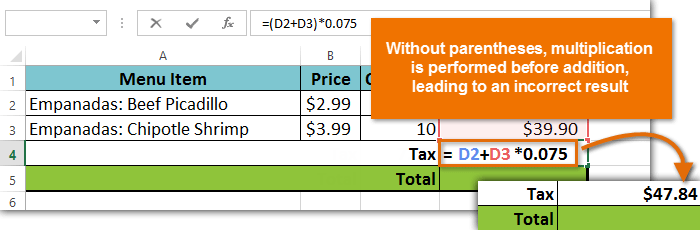
Remember the order of operations from math class? If not (or if you want a refresher), you can check out our Complex Formulas lesson. Your spreadsheet will always use this ordering, which means it doesn't just calculate a formula from left to right. In the example below, the multiplication is calculated first, which isn't what we wanted. We could fix this formula by enclosing D2+D3 in parentheses.
Screenshot of Excel 2013

Switch to formula view

If you have a lot of formulas and functions in your spreadsheet, you may want to switch to formula view to see all of them at the same time. Just hold the Ctrl key and press ` (grave accent). The grave accent key is usually located in the upper-left corner of the keyboard. Press Ctrl+` again to switch back to normal view.
Screenshot of Excel 2013
Remember, it takes a lot of practice to master writing formulas. Even the most experienced spreadsheet users encounter formula errors. If your formula doesn't work or produces an incorrect value, don't panic! More often than not, there's probably a simple reason your formula resulted in an error—once you find it, you'll be able to get your formula working correctly.

Facebook introduces GIFs in comments to celebrate 30 years of the image format

t’s been 30 years since the GIF format first made an appearance on June 15, 1987. CompuServe, a subsidiary of AOL and one of the biggest online service providers at the time, introduced GIF as a color image format replacement for their Black and White run-length encoding (RLE) format. Celebrating three decades of the image format, Facebook has introduced the ability to post GIFs in comments. Users could already post GIFs as their status updates, and now they also have an option of doing so in the comments section. Users can select from a whole library of GIFs right inside the social network.
Introducing the feature, Facebook wrote in a blogpost, “We know people love communicating with GIFs on Messenger, and we’re also making it easier to use GIFs on Facebook. Today we’re introducing the ability to add GIFs in comments for all people on Facebook globally.”
Marking GIFs 30th birthday, Facebook also shared some insights on the popularity of the format on the social media platform. For instance, Messenger users sent nearly 25,000 GIFs per minute last year. That’s nearly 13 billion GIFs shared on the chat platform in a year. Facebook says GIFs sent on Messenger have tripled in the past year. 2017 New Year’s Day was the most popular day for sharing GIFs on Facebook Messenger, with nearly 400 million GIFs shared on the day.

After Facebook, YouTube now details its efforts to curb extremist content online

When it comes to managing extremist content on its platform, YouTube seems to have the same idea as Facebook. Days after Facebook announced its plan to take on extremist on its network, Kent Walker, senior VP and general counsel of Google, explained YouTube’s initiatives for the same. And the two are remarkable similar, driven by a combination of human and AI elements. Walker’s post, which was originally published as an op-ed on Financial Times, has now been posted on Google’s blog as well. In it, he explains four steps that YouTube is taking to curb extremist content on the video streaming platform.
First amongst these initiatives is to use machine learning algorithms to identify and remove extremist videos. “This can be challenging: a video of a terrorist attack may be informative news reporting if broadcast by the BBC, or glorification of violence if uploaded in a different context by a different user,” Walker writes. YouTube is using video analysis models to “find and assess” terrorism related content it has removed over the past six months. Walker says YouTube will devote “more engineering resources” and apply the company’s “most advanced machine learning research” to train new “content classifiers”. 
Next, YouTube is going to use human resources to manage the “nuanced decisions” when removing videos. YouTube will expand its Trusted Flagger Programme for this and walked says these flaggers are accurate over 90 percent of the time. Unlike Facebook, YouTube is also enlisting third parties in its effort. The expansion of the Trusted Flagger Programme includes adding 50 NGOs, who will get operational grants from YouTube, which in turn will use their expertise in flagging or removing extremist content. The company already has 63 organisations onboard and plans to add 50 more. 
The third point in Walker’s op-ed is perhaps a direct result of the boycott YouTube faced in Europe recently. This includes taking a “tougher stance” on videos that border on the edge of violating the company’s policies. Content that does not clearly violate YouTube’s policies will appear behind interstitial warnings and they won’t be monetised. YouTube will also bar comments from such videos and users won’t be allowed to endorse them either. Essentially, YouTube is making these videos tougher to find and reducing engagement on them, hoping that it helps in curbing them from spreading as well. “We think this strikes the right balance between free expression and access to information without promoting extremely offensive viewpoints,” writes Walker.
Lastly, YouTube is taking more steps towards counter-radicalisation through its Creators for Change programme. Here, the company will redirect users targeted by ISIS and other extremist groups to counter-extremism content instead. “In previous deployments of this system, potential recruits have clicked through on the ads at an unusually high rate, and watched over half a million minutes of video content that debunks terrorist recruiting messages,

Yu Yureka Black to be available via open sale from June 22 onwards

Yu has announced that its new Yureka Black smartphone will be available via open sale from June 22 onwards. The company also claims that the phone received more than half a million notify me responses from Flipkart before the first phone’s first flash sale. The phone is priced at Rs. 8,999 and sports a 5-inch FHD display. It is powered by a Qualcomm Snapdragon 430 processor.
Read the complete press release below
YUREKA BLACK, the recently introduced smartphone from YU has received an overwhelming response to its 3 flash sales on Flipkart. In order to make the smartphone available to avid fans, YU is now making the smartphone available through an open sale which will begin from Thursday, 22nd June, (0001Hrs) onwards. The smartphone has received more than half a million notify me responses on Flipkart much before its first flash sale.
YUREKA BLACK, is the next generation version of YU’s iconic smartphone YUREKA, which broke records and was the most searched smartphone on Google. The three sales of YUREKA BLACK have seen the smartphone being sold out in just a few minutes. Bringing the magic of Black with the new YUREKA, the new smartphone is the perfect amalgamation of ravishing looks & best-in-class specs making the consumers want to flaunt it amongst their peers! YUREKA BLACK has 5-inch Full HD display (1080×1920 pixels) with a 2.5D curved glass design, protected by Corning Gorilla Glass 3 and is powered by an octa-core Qualcomm Snapdragon 430 MSM8937 64-bit processor. It packs in the best of performance with 4GB RAM and 32GB of internal storage. With the perfect metal unibody design, YUREKA BLACK is one of the best looking smartphones competitively priced at Rs. 8999 and is a perfect amalgamation of performance and style. The device has a 13MP rear camera with dual LED flash and the front camera is 8MP with selfie flash.

Friday, June 9, 2017

NASA's Hubble Space Telescope Captures the Universe's Brightest Galaxies Indo-Asian News Service, 07 June 2017

HIGHLIGHTS

  • Telescope has captured close-up views of the brightest infrared galaxies
  • The galaxy images revealed a tangled web of misshapen objects
  • The unusual forms may have been produced by collisions between galaxies
Using a cosmic magnifying-glass effect, NASA's Hubble Space Telescope has captured unique close-up views of the brightest infrared galaxies in the universe which are as much as 10,000 times more luminous than the Milky Way.
The cosmic magnifying effect, a phenomenon called gravitational lensing, occurs when the intense gravity of a massive galaxy or cluster of galaxies magnifies the light of fainter, more distant background sources.
The galaxy images revealed a tangled web of misshapen objects punctuated by exotic patterns such as rings and arcs.
The odd shapes are due largely to the foreground lensing galaxies' powerful gravity distorting the images of the background galaxies.
The unusual forms also may have been produced by spectacular collisions between distant, massive galaxies in a sort of cosmic demolition derby, the researchers observed.
"We have hit the jackpot of gravitational lenses," said lead researcher James Lowenthal of Smith College in Massachusetts, US.
"These ultra-luminous galaxies are very rare. Gravitational lensing magnifies them so that you can see small details that otherwise are unimaginable. We want to understand what's powering these monsters, and gravitational lensing allows us to study them," he added.
The results were presented at the American Astronomical Society meeting in Austin, Texas.
The galaxies are ablaze with runaway star formation, pumping out more than 10,000 new stars a year. This unusually rapid star birth occurred at the peak of the universe's star-making boom more than 8 billion years ago, the light from which we are observing now.
The star-birth frenzy creates lots of dust, which enshrouds the galaxies, making them too faint to detect in visible light. But they glow fiercely in infrared light, shining with the brilliance of 10 trillion to 100 trillion suns, the researchers noted.
According to researchers, there are only a few dozen of these bright infrared galaxies exist in the universe, scattered across the sky, which may hold clues to how galaxies formed billions of years ago.

Russian Rocket Returns to Service With Launch of US Satellite

HIGHLIGHTS

  • The Proton rocket carried a US telecom satellite, Echostar-21
  • The Proton-M was successfully launched at 6:45am (0345 GMT/ 9:15am IST)
  • Echostar-21 will provide telecommunications services in Europe
Russia on Thursday sent into space a Proton rocket carrying a US telecom satellite, Echostar-21, the first launch in a year after an engine glitch sparked a probe into manufacturing flaws.
"The Proton-M was successfully launched at 6:45 am (0345 GMT/ 9:15am IST)," from the Baikonur cosmodrome in southern Kazakhstan, the Russian space agency Roscosmos said.
"All the phases went off as scheduled," a statement said.
The Proton-M is the largest Russian carrier rocket and has been used since 1965. But it grounded Proton launches in June last year after a series of embarrassing setbacks.

WWDC 2017: The 6 Big Things Apple Announced

HIGHLIGHTS

  • Apple held its annual developers conference on June 5
  • Tim Cook made 6 major announcements at WWDC 2017
  • Apple introduced Siri-powered HomePod and many other products
Chief executive Tim Cook said that Apple had six big announcements Monday at its annual developers conference. Cook promised updates to each of Apple's operating systems - for the Apple TV, the Apple Watch, mobile devices and computers - plus some additional announcements that he promises will be "major."
Here's what we found out about each of them:
1) Apple's home hub is here.
The HomePod is Apple's smart speaker - the answer to Google Home and Amazon's Echo line. The speaker will respond to voice commands using Apple's voice assistant, Siri, and is closely integrated with Apple's Music services. The speaker will also be able to sense the size of the room using acoustics. It will also work with Apple services such as Messages and its smart home appliance platform, HomeKit. And just like its competitors, the HomePod will provide information on news, general knowledge, weather and sports scores.

While its features appear very similar to what's available on the Echo or Google Home, Apple said that its distinguishing feature is sound quality.
The HomePod is designed with privacy in mind, said Phil Schiller, Apple's head of worldwide marketing. All communications are encrypted.
The HomePod will cost $349 - more expensive than Google's and Amazon's smart speakers - and will start shipping in December.
homepod reuters HomePod
2) Amazon is coming to Apple TV.
It's a been a long road for Apple TV customers who like to watch Amazon Video. A feud between the two companies has kept Amazon's library off the Apple set-top box. But the firms appear to have buried the hatchet a little. That's good for consumers, who have been caught in the middle of a battle between two titans that has made the streaming world needlessly complicated. (Amazon chief executive Jeffrey Bezos is the owner of The Washington Post.)
3) Apple Watch is getting an update.
Siri is getting smarter on the Apple Watch, with a new watch face that uses the assistant to set up a feed of your day on your wrist. The watch face, which seems like a mash-up between Google Now and your Facebook feed, will show you photos of old memories from previous years and make recommendations. For example, if you're close to hitting your activity goals for the day, the watch face will tell you exactly what you need to do to achieve your goals.
The workout app is also getting an update, with features that give users more automatic measurements and track multiple workouts in a single session.
Apple Music is also going to be more closely integrated with the watch, with automatic syncing for playlists. The developer preview is open now and will roll out to all customers this fall.
4) Apple's reveals new Mac operating system - High Sierra - and Macs get a refresh.
Apple's next operating system is called High Sierra and will be a free update to the current Sierra system.
Mac lineup: Apple also announced a slew of updates to the Mac lineup, which has been overdue for an update. The new desktops now have higher memory capacity and stronger graphics performance. The 21.5-inch iMac starts at $1,099 (roughly Rs. 70,720); a 21.5-inch, 4K-capable iMac Retina will cost $1,299 (roughly Rs. 83,590); and a 25-inch iMac Retina 5K goes for $1,799 (roughly Rs. 1,15,770).
new 2017 imac pro dark grey front
Notebooks: Apple said it's refreshing its notebooks, with the MacBook and MacBook Pro moving to faster processors and faster solid-state hard drives. The 15" MacBook Pro is also getting faster graphics. Apple is also cutting the basic price for the MacBook's 13-inch model by $300 (roughly Rs. 19,300). All are shipping now.
Desktop: Apple also announced a new iMac Pro, which will cost $4,999 (roughly Rs. 3,21,670) and will be available in December. Apple is clearly trying to position its desktop and laptop computers to appeal more to creative professionals, including game developers. Apple officials talked a lot about support for virtual reality, something it hasn't spoken that much about before.
5) iOS 11 gets some redesigns.
Control center: Apple is revamping the control center on iOS - the panel that pops up to let you control volume, brightness, etc. - by enlarging it and spacing out some of the functions.
Apple Pay: The company also introduced a person-to-person payment feature to Apple Pay. For example, a message that says "You owe me $20" will automatically pull up a suggestion to tap into Apple Pay, which will suggest $20 (roughly Rs. 1,290) as your basic payment.

Voice assistant: Siri will speak (a little) more naturally in female and male voices and use some sort of machine learning to suggest apps that you may want to use.
GPS: Maps has a couple of updates, including indoor maps for places such as shopping malls - a cultural icon that's apparently dying, but, hey, at least it's a start.
The Maps app will now display the speed limit of the road you're driving on and let you know what lane you should be in. Using Bluetooth and Wi-Fi, it will also be able to track when you're moving in a car and give you the option to turn on a "do not disturb" mode while driving. Those who send you a message will now see an automatic reply that you're driving, and you will see their message later. If they reply "urgent" to that message, that message will be marked as such and go through.
App Store: The store is getting a makeover, too, with tabs for games, apps that are notable that day, and a tab just for nongaming apps.
ios 11 ipad iphone
AR: Apple is also bringing more machine learning and augmented reality capabilities to the iPhone, which will help developers create apps with these features. In a keynote demo, Craig Federighi, Apple's senior vice president of software engineering, placed a digital cup, vase and lamp on a table and showed how the objects' shadows were able to interact with each other. A representative from Wingnut AR, a studio owned by "Lord of the Rings" director Peter Jackson, demoed a more elaborate AR battle onstage. These new capabilities, Federighi said, make iOS the largest AR platform in the world.
6) New iPad Pro models and new productivity features
Apple has updated its iPad Pro line, upping the basic screen size of the higher-end tablet to 10.5 inches, rather than the 9.7-inch screen that has been the basic iPad's screen size since it was introduced.
The 10.5-inch model will start at $649 (roughly Rs. 41,700), with the bigger 12.9-inch model starting at $799 (roughly Rs. 51,400). Apple is also doubling the storage space on these models, and the larger model will have a version with 512GB of storage. Users will be able to order the tablets now; they ship next week.
new ipad pro 12 9 gadgets360 064817 014809 5753
The iPad Pro also gains some productivity features for iOS 11, which more closely mimics the Mac. Users will be able to easily multitask, drag and drop images between apps and put far more Mac-like features at users' fingertips. Apple has also bumped up the features on the Pencil stylus, and the iPad Pro should now be able to read your handwriting.

Nokia 9 6GB RAM Variant Gets Leaked in Benchmark Listing


HIGHLIGHTS

  • Nokia 9 now expected to sport 6GB RAM variant
  • Previously, 4GB and 8GB RAM variants had been tipped
  • It is also said to have a Qualcomm Snapdragon 835 SoC
HMD Global, the company that's selling Nokia phones now, has already revealed Nokia 3, Nokia 5, Nokia 6, and Nokia 3310 feature phone. A flagship smartphone from Nokia's new stables has long been rumoured, thought to be called the Nokia 9 - the smartphone has also been leaked in a promotional video and live images in the recent past. It's also been allegedly listed on GeekBench and AnTutu benchmark sites, with the model name HMD Global TA-1004, with some listings showing 4GB of RAM and others showing 8GB of RAM - indicating two variants. Now, a new Nokia 9 listing has shown up on GeekBench, tipping there a 6GB RAM variant of the smartphone as well.
The latest Geekbench listing, spotted by NokiaPowerUser, shows that a 6GB RAM variant of Nokia 9 could be in works. Appearing as model 'Unknown Heart', the Nokia 9 6GB RAM variant seemingly sports an octa-core Qualcomm SoC, which has been already reported to be the Snapdragon 835. It also shows that the device will run Android 7.1.1 Nougat out of the box. It was also found to be at par with current flagship smartphones like Samsung Galaxy S8, iPhone 7 in multi-core scores.
As far the other specifications are concerned, there is no information revealed by this listing except what was already reported. The Nokia 9 is said to sport 5.5-inch QHD display, dual 13-megapixel cameras at the back, and have a dual-LED flash support as well. There will be a 13-megapixel front camera as well. It has also been tipped to offer 64GB of inbuilt storage with no clarity on external storage support. While the battery capacity on the device has not been disclosed, it is expected to support Qualcomm Quick Charge 4.0.
A fingerprint scanner is also tipped to be embedded on the home button at the front along with dust and water resistance. The Nokia 9 also appeared on EA Union certification revealing the model numbers TA-1004 / TA-102 as the single SIM and dual SIM variants respectively.

Samsung Galaxy S8+ 6GB RAM, 128GB Storage Variant Goes on Sale in India

HIGHLIGHTS

  • The original featured 4GB of RAM and 64GB of built-in storage
  • The original had a price tag of Rs. 64,900
  • This gives the new variant a premium of Rs. 10,000
After launching it last week, Samsung on Friday has made the Samsung Galaxy S8+ (Review) variant with 6GB RAM and 128GB storage available to buy in India. You can purchase it via Flipkart and the Samsung Shop. The Samsung Galaxy S8+ 6GB RAM, 128GB storage variant price in India is Rs. 74,900.
 As an introductory offer, the company says, all customers will be eligible for a free bundled wireless charger (worth Rs. 4,499)  with the smartphone. The new variant will only be available in the Midnight Black colour variant. On the Samsung Shop, the company is offering a Rs. 2,500 cash back to ICICI Bank credit card users, while there is also an exchange offer providing up to Rs. 15,000 discount. On Flipkart, it comes with a Reliance Jio double data offer providing 28GB+28GB at Rs. 309, as well as ICICI credit card cash back.

To recall, Samsung launched the Galaxy S8 and Galaxy S8+ back in April in India, featuring 4GB RAM and 64GB of inbuilt storage. The Samsung Galaxy S8 is priced at Rs. 57,900 (MOP), while the regular Galaxy S8+ variant is priced at Rs. 64,900 (MOP), giving the new variant a premium of Rs. 10,000. It also forgoes the Coral Blue and Maple Gold colour options the regular version is available in.
The Samsung Galaxy S8 and Galaxy S8+ India variants are powered by the Samsung Exynos 8895 SoC, and are almost identical smartphones. The primary differences are battery capacity, dimensions, and screen size of the Infinity Display, which is a dual-edge curved display with an 18.5:9 aspect ratio, complete with Corning Gorilla Glass 5 protection. The Galaxy S8 sports a 5.8-inch QHD+ (1440x2960 pixels) Super AMOLED display, while the Galaxy S8+ sports a 6.2-inch display with the same resolution and display technology. The displays are certified by the UHD Alliance as Mobile HDR Premium.
The octa-core Samsung Exynos 8895 SoC sports a quad-core module clocked at 2.35GHz, and another quad-core module clocked at 1.9GHz. The Galaxy S8 and Galaxy S8+ smartphones feature 12-megapixel 'Dual Pixel' rear cameras with optical image stabilisation and an f/1.7 aperture. On the front, the smartphones bear 8-megapixel front cameras with autofocus, and also bear an f/1.7 aperture. Both smartphones' inbuilt storage is expandable via microSD card (up to 256GB) in a hybrid dual-SIM configuration.
Connectivity options on the Samsung Galaxy S8 and Galaxy S8+ include 4G LTE (Cat. 16), Wi-Fi 802.11ac (2.4GHz, 5GHz), Bluetooth v5.0, USB Type-C, NFC, and GPS. Sensors on board include an accelerometer, ambient light sensor, barometer, gyroscope, heart rate sensor, magnetometer, and proximity sensor. They both support Samsung Pay, with NFC and MST connectivity. The two smartphones come with iris scanner, fingerprint scanner, and facial recognition.
The Galaxy S8 and Galaxy S8+ support wireless charging as well as fast charging. The Galaxy S8 and Galaxy S8+ pack 3000mAh and 3500mAh batteries respectively. The Galaxy S8 measures 148.9x68.1x8mm and weighs 155 grams. The Galaxy S8+ measures 159.5x73.4x8.1mm and weighs 173 grams.
Of course, one of the biggest highlight features of the Samsung Galaxy S8 and Galaxy S8+ is the Bixby virtual assistant. At launch, the virtual assistant will not feature Bixby Voice functionality, but, will offer Bixby Vision, Home, and Reminder features. Another highlight feature is IP68 certification for dust and water resistance.

Moto G5S Plus, Moto Z2 Force, Moto X4 Price in India Leaked, Tipped to Launch

HIGHLIGHTS

  • Moto Z2 Force may be priced at Rs. 38,999
  • The Moto G5S Plus may be priced at Rs. 17,999
  • Moto X4 may be priced at Rs. 20,999
Lenovo brand Moto just recently launched its Moto Z2 Play smartphone with Moto Mods support in India. However, the company plans to release three more smartphones into the market before the end of summer, a fresh leak hints. It claims Moto G5S Plus, Moto X4, and Moto Z2 Force are all launching in India real soon, and the prices of all the three smartphones at launch have also been tipped.
Tipster Andri Yatim has taken to Twitter to reveal that the Moto G5S Plus, Moto X4, and Moto Z2 Force are all launching in India this summer. The big USP of all the three devices will be the dual camera setup at the back. The tipster claims that the Moto G5S Plus will be priced at Rs. 17,999, the Moto X4 will be priced at Rs. 20,999, and the Moto Z2 Force will be priced at Rs. 38,999. There is no tangible timeline as to when all the smartphones will launch, except for the vague summer release, but all the smartphones are launching in India soon, according to the tipster.
The Moto G5S Plus has been leaked on several occasions in the past hinting at an imminent launched. Leaks reveal that the smartphone may sport a dual camera setup, a front flash, and a round-shaped Home Button. Some of rumoured specifications of the Moto G5S Plus include 5.5-inch full-HD display, octa-core processor, and Android 7.0 Nougat.
Moto’s new ‘X’ series is also expected to get an addition with the Moto X4, however, this is the first time the device has been tipped anywhere. We know very little about this device as of now. The Moto Z2 Force image leaks in the past tip a similar design to the recently launched Moto Z2 Play and will come with support for Moto Mods as well. However, the big difference will be the dual camera setup at the back.
The Moto Z2 Force is expected to sport a ShatterShield screen and feature support for Gigabit LTE. As Gigabit LTE is currently supported only by Snapdragon 835 SoC, the Moto Z2 Force will feature the aforementioned processor if not a newer variant.